Before you start
- You need to be a Super Admin to install and configure HandoffReady.
- HubSpot subscription: [SUPPORTED TIERS].
- Projects need the projects object turned on (see HubSpot's guide).
1. Install and connect
- Find HandoffReady on the HubSpot Marketplace and click Install.
- Choose the HubSpot account if you have several.
- Review the access HandoffReady asks for, choose the optional access you want to give, and approve it.
- You land on a page saying HandoffReady is installed and where its settings are. Return to HubSpot.
| Access | Why |
|---|---|
| Read deals | Stage checks, the checklist, the queue and the preview. |
| Write deals | Only to set the deal stage when a user clicks Move to … and the stage checks pass. No other deal field is changed. |
| Read companies | Whether the deal has a company, the company fields stage checks use, and associating it with the ticket or project. |
| Write contacts | Creating tasks; reading the deal's contacts and the contact fields and tasks stage checks use. |
| Read owners | Choosing who owns the ticket, project and tasks. |
| Read and write tickets | Creating the handoff ticket and checking it still exists. |
| Read users | Checking you are a Super Admin before setup changes. |
| Read line items (optional) | Only for stage checks on the deal's line items. |
| Read quotes (optional) | Only for stage checks on whether a quote is approved. |
| Read custom objects (optional) | Only for stage checks and handoff requirements on custom objects linked to deals. HubSpot Enterprise only: HubSpot grants it only when the account has custom objects. |
| Read and write projects (optional) | Only if the account has projects. |
2. Configure
Open Settings → Integrations → Connected Apps → HandoffReady and its Settings tab. Everyone can view; only Super Admins can change. The page has four tabs: Handoffs, Stage checks, Due dates and Plan and account. The screenshots on this page show HandoffReady for a Danish HubSpot user; an English user sees the labels quoted here.
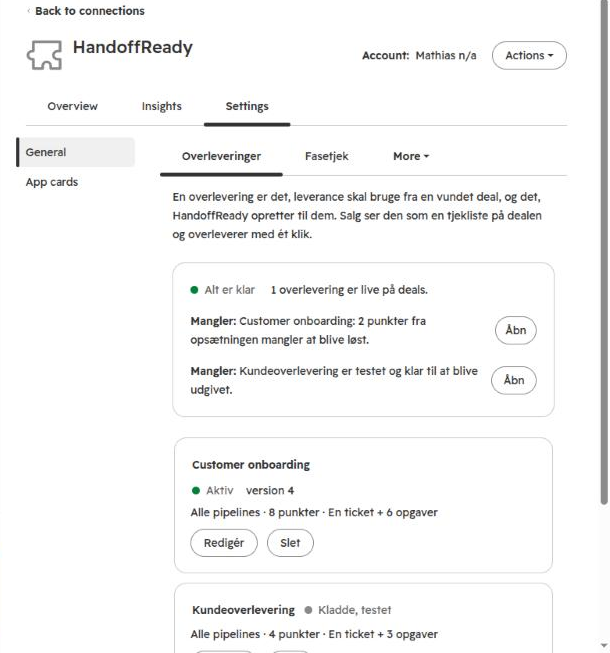
The overview
At the top, All set or how many things to fix, and how many handoffs are live. Each line starts with Fix: (something is broken) or To do: (something not finished) and has a button that goes there. It finds deal fields, pipelines, stages and ticket fields a handoff uses that HubSpot no longer has; handoffs paused by the plan; tasks without a time zone; a failed payment; drafts not yet published; and open items from a starting setup.
Your first handoff
-
Pick a ready process. With no handoff yet the
page starts here; later, click New handoff. Under
Start from a ready process, pick the one closest to how
you work and click Use this setup. You see everything it
uses, with our best guess of the matching field in your account;
pick another field, skip the item, or let HandoffReady create the
field. Nothing is created until Create the draft. A plain
template is further down.
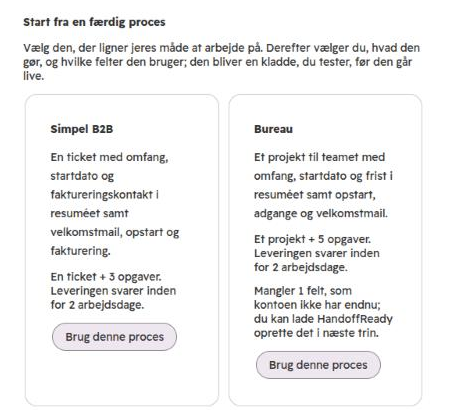
Each ready process says what it creates and how fast delivery answers. Shown in Danish. -
Fit it to your account. The editor has six parts:
Which deals get this handoff (a name and the deal
pipelines, none means all); What sales must fill in (up
to 40 deal properties, whether a company and a contact are
required, and with Add a requirement fields on the deal's
company, contacts and custom objects, written like stage checks
and required unless set to Only a warning; custom objects
need HubSpot Enterprise);
What delivery gets and how fast it answers
(brief fields, promised dates, response days);
Who takes it on, and who may accept (who may accept; who
owns the new record: fixed, by the deal owner's team or in turn);
What to create (ticket, project or tasks only; pipeline,
first stage, owner, name with
{deal}as the deal name, and field mappings); and Tasks (name, days after the handoff, assignee; type and priority under Type and priority). Settings most handoffs leave alone (line items in the brief, who gets the reminder, the owner's task, the note on the deal) are under More options. Then Save draft.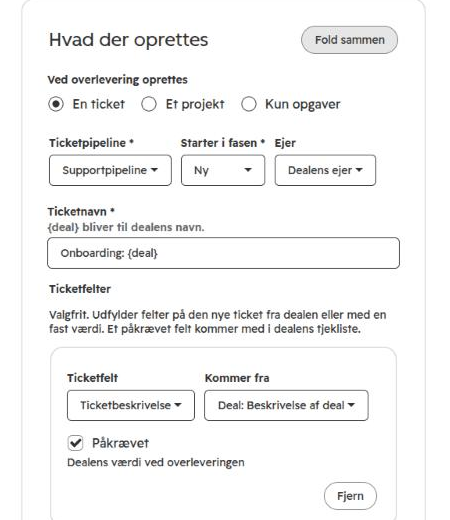
An open part. Fold closes it again. Shown in Danish. - Test on a real deal: under Test and publish, pick a recently won deal or paste a deal record ID and click Test with this deal. Nothing is written in HubSpot.
-
Publish. A handoff with tasks needs a time zone
first (Due dates tab: time zone and hour 0–23).
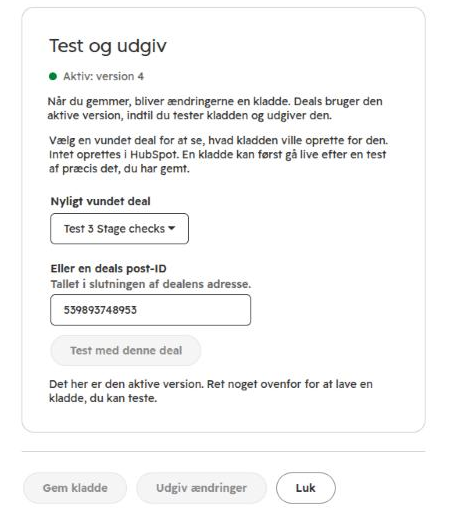
The test shows what would be created without writing anything. Shown in Danish.
Changing a live handoff
A live handoff opens folded: each part shows its settings in one line. Click Change on a part, or Show all parts. A part that needs fixing opens by itself. Changes are saved as a draft; deals keep the published version until you test and publish it. Tested before? Save, test and publish does it in one click, on the same deal as last time, and publishes only if nothing is wrong. Discard draft goes back to the live version.
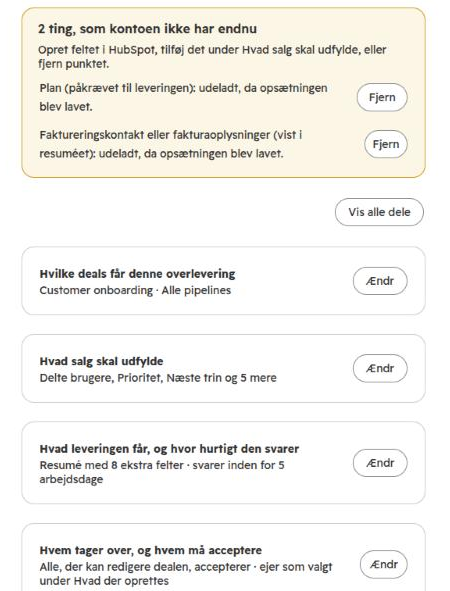
HandoffReady finds deals won in the last 30 days by itself; under Older deals on the Due dates tab a Super Admin can look back up to 365 days. Older deals only show as waiting; nothing is created. Plan and account holds the plan, invoices and disconnecting.
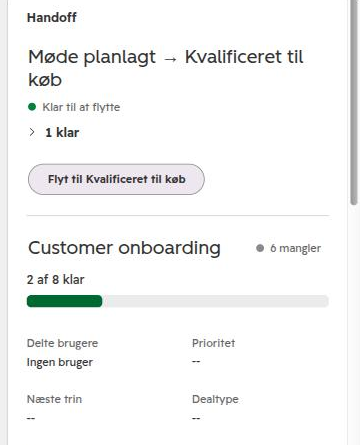
The Handoff card shows on the deal record, in the middle column.
Stage checks
Optional. Say what a deal needs before it moves to each stage. Free has library checks on one stage; Pro has every stage of every pipeline, custom checks and "Only when…".
- In settings, under Stage checks, click Set up stage checks and pick a Pipeline. The first stage and Closed Lost can't have checks.
- Either Start with a suggested set (before the proposal: a contact and a company; before the contract: a decision maker, line items and an approved quote; before Closed Won: close date and amount filled in, no open tasks) — this fills drafts only — or open a stage and use Add a check.
- The library has eight kinds: a deal property is filled in, a contact is associated, a contact property is filled in, a company is associated, a company property is filled in, the deal has line items, a quote is approved, no open tasks on the deal. Line items and quotes need the optional access from the install.
- On Pro, Custom check: write your own rule reads as a sentence: [At least one] [contact] [labelled Decision maker] where [Phone] [is filled]. Any object around the deal (deal, contacts, companies, line items, quotes, tasks); any, every, none or at least N; filters; and/or groups up to two levels and 10 conditions. Only when… makes any check apply only to some deals.
- Each check is Blocks the move or Only a warning, with a sentence reps see that you can edit. Save draft, Test with this deal (nothing is written), then Publish.
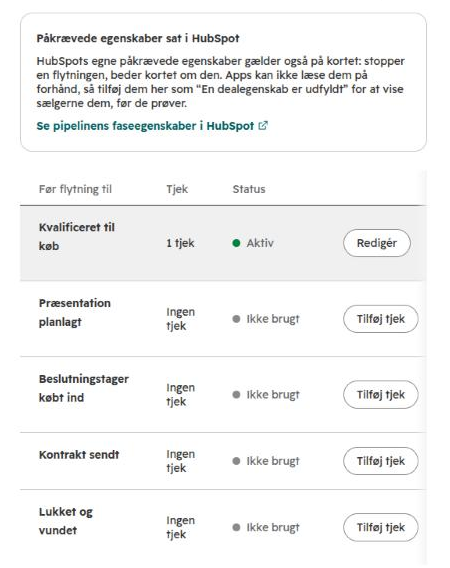
On the deal, the card shows e.g. Qualified → Proposal sent and 3 of 5 ready, failing blockers first, each with a fix in place. Move to … works when no blocker fails; HandoffReady checks again and sets the deal stage. It only moves deals forward, never to Closed Lost and never by itself. A check it can't read shows Couldn't check and doesn't block.
Skipped checks: HubSpot doesn't let an app stop a deal dragged on the board. A deal that reaches a stage while a blocking check fails shows up on the app page under Skipped checks within seconds (HubSpot notifies the app; a check every 10 minutes catches a missed notice), and drops off once the checks pass or the deal moves on. Moves made with the card never show up there.
If the plan goes from Pro to Free, all checks are kept: the first stage you put checks on keeps running, the others are paused, and custom checks and "Only when…" can't be added or changed. Stage checks read the fields they use live and don't store them.
3. Use
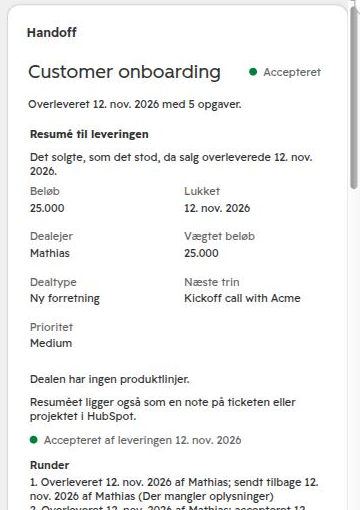
- The hand-over: at handoff HandoffReady keeps a brief of what was sold (amount, close date, the promised dates and fields you chose, and the line items). It is shown on the card and written as a note on the ticket or project (or the deal), linking back to the deal. The ticket's owner gets the task Ny overlevering: <deal name>, due at the response deadline. Accept handoff takes it on (who may is set in the handoff: anyone who can edit the deal, anyone but the person who handed off, or chosen people and teams; if you can't, the card says why). Send back to sales needs a reason category and a short explanation; the deal owner gets a task and delivery's is closed. The explanation shows on the card only; statistics count the category.
- Hand off again: the rep fixes the deal and clicks Hand off again. The card runs the checklist again and shows what is missing and what changed since the round that was sent back (added, changed, removed, line items too) before anything is sent. Then the note and the ticket's or project's title and fields are updated in place (the note is marked Opdateret; no second note) and delivery gets a new task. The deadline counts in Danish working days; late handoffs are marked and, on Pro, get a reminder task. The brief is deleted after 180 days, also when nobody answered.
- Reps open a deal, fix what the stage checks and the checklist say is missing, and move the deal with Move to …. Once the deal is won: Preview delivery handoff → Create delivery handoff. If the deal changed since the preview, the updated preview is shown first.
- Delivery uses the app page: Needs attention, Waiting (never ages out), Handed off and Skipped checks, and clicks Accept handoff on the deal.
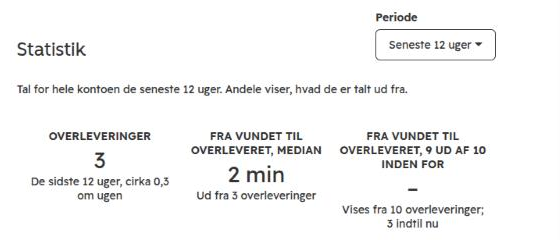
- Statistics under the queue, for the last 4, 12 or 26 weeks: handoffs per week, Closed Won to handoff (median and 9 in 10), handoff to accepted, acceptance rate, open attention items, stage moves with the card against moves that skipped checks, compliance per stage and the checks that fail most, and the share sent back with reasons by category. On Pro also a report per rep and per handoff. Account totals, no deal names; the same numbers are in the account portal.
- Automatically: HubSpot tells HandoffReady within seconds when a deal is won or changes stage; every 10 minutes it also looks for won deals and stage changes itself, in case a notice was missed. Handoffs HubSpot didn't confirm are looked up every 2 minutes instead of being created again; when a card opens, HandoffReady checks the ticket or project still exists.
On the deal card
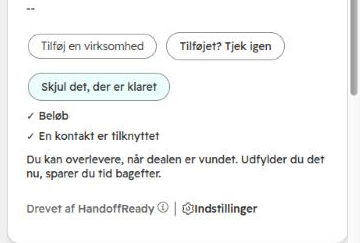
The card shows the way to the next stage and the checklist for delivery. Fill in fields right on the card. When a company or contact is missing, click Add a company or Add a contact, pick it in HubSpot's form, then click Added it? Check again: HubSpot doesn't tell the card about new associations. Show what is done lists what is already in place.
The app page
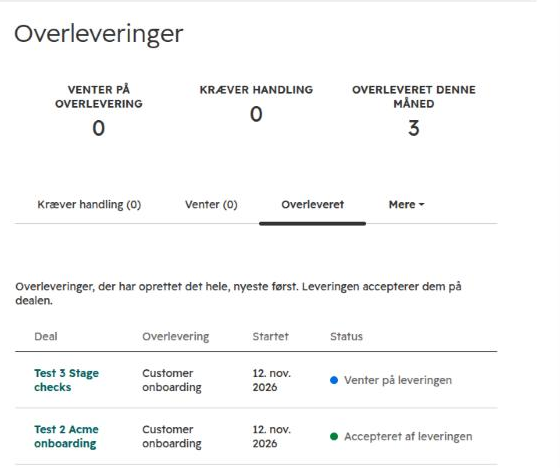
Note HandoffReady sends no e-mails, but new records and stage moves can start your own HubSpot workflows. It moves a deal only when a user clicks Move to … and can't stop deals being moved in other ways. Queue, card, preview and history only show deals HubSpot lets the user see (Super Admins see all).
Account portal and billing
In settings, Plan offers Pro monthly or yearly by card and
links to the account portal (Invoices and subscription) at
https://handoff.maaaw.dk/account. Sign in with HubSpot;
only Super Admins of the account can. There you find the statistics,
company details (name, address, VAT number, billing e-mail and a
purchase order reference), invoices with PDFs, the yearly plan paid
by invoice within 14 days, Stripe's customer portal for the card and
cancelling, and billing shared with another HubSpot account you are
a Super Admin of.
Note The sign-in lasts 8 hours in a cookie holding your HubSpot user and e-mail; HandoffReady doesn't keep your HubSpot access after sign-in. Company details go to Stripe and are kept only there. A bookkeeper without a HubSpot user gets the invoice PDFs from a Super Admin, or a Super Admin opens Stripe's customer portal for them.
Field mappings
In What to create, set up to 20 fields on the new ticket or project, each from a fixed value or a deal property read at handoff time. Supported: single-line and multi-line text, number, single checkbox, date, and dropdown or radio select. A text field can be filled from any deal property; other types only from the same type. Select values must be one of the field's options. Name, pipeline, stage and owner are set by the handoff itself and can't be mapped.
A required field without a value, or a value that doesn't fit, stops the handoff before anything is created and names the field. An optional field without a value is left empty. HubSpot may require ticket or project fields HandoffReady can't see; map them yourself and test before publishing.
Repair
A handoff shows Needs attention when its ticket or project was deleted (checked when the deal card opens; for tasks-only handoffs, the first task), when HubSpot refused a step, or when a step couldn't be found 10 minutes after HubSpot didn't answer. It is never deleted or re-created by itself.
A Super Admin opens the deal and clicks Repair handoff. HandoffReady keeps every record that still exists — completed tasks too — and creates only what's deleted, missing or refused, from the handoff as it was when it first started. Surviving tasks are not moved onto a new ticket. Repair never deletes anything and doesn't undo workflows the original records started.
4. Disconnect
In HandoffReady's settings, under Disconnect: Disconnect the app → Yes, disconnect. HandoffReady asks HubSpot to remove the app, revokes its access and deletes its tokens at once.
5. Uninstall, and what happens to data
You can also uninstall in HubSpot (Settings → Integrations → Connected Apps → HandoffReady → Actions → Uninstall ). HubSpot doesn't notify apps directly; HandoffReady notices when HubSpot next refuses its access.
- Records HandoffReady created in HubSpot, and the stages deals were moved to, stay there; delete them in HubSpot if you want them gone.
- Setup, stage checks, history and queue are kept for 30 days in case you reinstall; reinstalling picks up where you left off.
- After 30 days HandoffReady deletes the account's tokens, handoff and stage check setup, handoffs, steps, history, queue, discovery state, skipped checks, stage moves made with the card, webhook events, activation steps, feature flags and any shared-billing link (a job checks every 6 hours). Only the account id stays, with a note that it uninstalled, its trial and any subscription (Stripe ids and dates). Nightly backups roll off 14 days later. A subscription that still runs ends at the close of the current billing period and isn't renewed.
- Those go later: the uninstall note (account id, reason, times) 30 days after the deletion; the trial 5 years after it ended, so it doesn't start again if you reinstall; a subscription 5 years after it ended, for bookkeeping. Nothing is deleted while HandoffReady is installed or while the subscription runs in Stripe.
- For earlier deletion, e-mail hello@maaaw.dk with the account id. We start it by hand; it's done within about 5 minutes. Everything goes at once, the uninstall note and trial too, except a subscription still within its 5 years. Uninstall HandoffReady first; a subscription that still runs ends at the close of the current billing period. We keep a note of the request (account id, dates, outcome) for 30 days.
HandoffReady stores ids, times, status and your setup — never deal names, amounts, contact details or company billing details.
Get help
E-mail hello@maaaw.dk. We answer within two working days (Danish working days). Include your account (portal) id and the deal; don't send customer data. More about support.